
Прием и отправка почты из командной строки
Обычно для приемки и отправки почты используются веб-сервисы типа gmail и yahoo, или графические почтовые клиенты. Однако в linux мы можем также отправлять или получать почту в командной строке. Это полезно в таких ситуациях, как отправка почты из скриптов, или в случаях, когда графическая оболочка недоступна.
В этом руководстве описывается, как использовать команду mail для приема и отправки почты.
Отправка почты
В зависимости от дистрибутива, который вы используете, может понадобиться установить дополнительные пакеты, такие как mailutils, чтобы команда mail нормально работала.
Пользователи Debian/Ubuntu могут воспользоваться командой apt-get:
Пользователи Fedora / CentOS / Red Hat Enterprise Linux (RHEL) могут сделать это с помощью yum:
Теперь команда mail должна быть готова к работе.
Выполните приведенную ниже команду, заменив «user@yourmaildomain.com» на свой адрес электронной почты. Опция s задает тему письма.
Теперь вы можете вводить текст письма. Когда закончите, нажмите «control-D» в начале новой строки.
Вы отправили первое письмо из командной строки. Содержимое письма можно вставить из файла.
В некоторых дистрибутивах командная оболочка сначала запросит в интерактивном режиме ввод других полей, таких как «Cc» (Carbon copy). Просто нажимайте «Enter», чтобы пропустить этот этап. Когда вы введете адрес или адреса электронной почты, необходимо нажать «Enter», чтобы перейти на новую строку, к телу письма.
После нажатия Ctrl+D вы возвращаетесь в командную строку без каких либо дополнительных оповещений. Однако ваше письмо было отправлено.
Интересно, что если вы ничего не введете в теле письма и нажмете Ctrl+D, команда mail отреагирует на это:
Если тело письма хранится у нас в отдельном файле, мы можем напрямую использовать его для отправки письма. Это полезно при вызове команды mail из скриптов, или других программ, написанных, например, на perl или php.
Или быстрая отправка письма одной строкой:
Другие полезные параметры команды mail:
Ниже пример использования этих опций:
Возможно задавать несколько получателей, перечисляя их адреса через запятую.
Указать адрес отправителя тоже несложно, но здесь есть своя хитрость. После отправляемого письма необходимо добавить перед своим адресом следующую последовательность символов:
(двойное тире) (пробел) (одинарное тире) (без пробела) f
Однако приведенная выше последовательность может работать в centos, но не в debian или ubuntu. В этих системах используется альтернативный синтаксис:
Опция a в целом добавляет дополнительные заголовки. Чтобы задать с ее помощью отправителя, используется следующий синтаксис:
Обратите внимание, что бы экранируем угловые скобки, так как они могут иметь свое назначение для командной оболочки.
Отправка писем с вложениями
Команда mail используется до сих пор, так как это простой и быстрый способ отправки писем, однако она, к сожалению, не поддерживает отправку вложений. Теперь мы сделаем следующий шаг и откроем для себя MUTT. Это очень мощный консольный почтовый клиент, и он умеет намного больше, чем просто отправка писем с вложениями, но в данном случае нас интересует именно эта возможность.
Если mutt по умолчанию у вас не установлен, вы можете сделать это с помощью apt-get или yum от имени root (или используя sudo):
Для пользователей Debian / Ubuntu:
Для пользователей Fedora / CentOS или Red Hat Enterprise Linux (RHEL):
Теперь вы можете отправлять письма с вложениями из командной строки.
Отправка простого письма:
Отправка письма с вложением:
Отправка писем из скриптов bash/shell
Теперь давайте копнем глубже и попробуем отправить письмо из скрипта оболочки. Ниже простой скрипт, отправляющий информацию по использованию диска.
Команда echo в начале третьей строки добавляет текст «Archived configuration files» в тело письма.
Чтение писем
До сих пор мы рассматривали отправку писем из командной строки. На самом деле также легко можно читать письма из командной строки:
Вы вероятно заметили, что для отправки и получения писем мы используем одну и ту же команду. Однако для чтения писем не нужно добавлять никаких опций.
Ниже простой вывод:
Команда Maildir-utils
Пользователи Debian/Ubuntu могут установить его с помощью apt-get:
Пользователи Fedora / CentOS / Red Hat Enterprise Linux (RHEL) могут использовать yum:
Ниже пара простых команд из этого пакета:
для поиска писем от william с темой report.
Чтобы проверить текущие настройки почты, используется опция info.
Итак, можно подвести итоги. На самом деле получение и отправление писем из командной строки не представляет особой сложности, если вы знаете, что делаете.
Linux: Mutt и Neomutt – консольный почтовый клиент
Mutt, и его “наследник” Neomutt – консольный почтовый клиент, MUA – Mail User Agent.
Поддерживает чтение и получение почты по IMAP/POP3, отправку по SMTP.
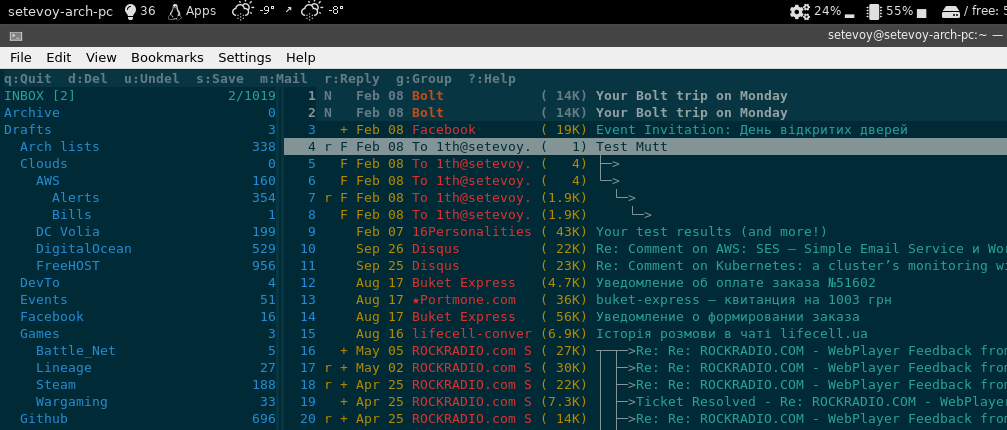
Ниже рассмотрим настройку IMAP и SMTP для обычного почтового сервера (не Gmail, хотя принципиальной разницы нет) на примере Freehost.com.ua, плюс примеры настроек для отображения списка каталогов в ящике и цветовой схемы.
Установка, навигация
Дальнейшие примеры будут с использованием Neomutt.
Подсказка по клавишам управления есть вверху:

И во время просмотра письма:

В целом управление стандартное/
При просмотре письма:
Настройка IMAP
Файл настроек по умолчанию –
Для чтения почты по IMAP – добавляем:
Это минимальные настройки для подключения.

Далее, с помощью ` mailboxes` можно настроить какие именно каталоги проверять регулярно на предмет появления новых писем, например:
Что бы периодически проверять все каталоги – указываем:
Для кеширования данных локальных, что бы не тянуть данные каждый раз с сервера добавляем:
Настройка SMTP
Для отправки почты из mutt / neomutt указываем:
При этом, если логин и/или пароль такие же, ка кдля IMAP – можно использовать их переменные, т.е.:
Поддержка SSL
Сортировка писем
В результате вместо дефолтной сортировки:

Получаем сортировку по дате получения включая ответы:
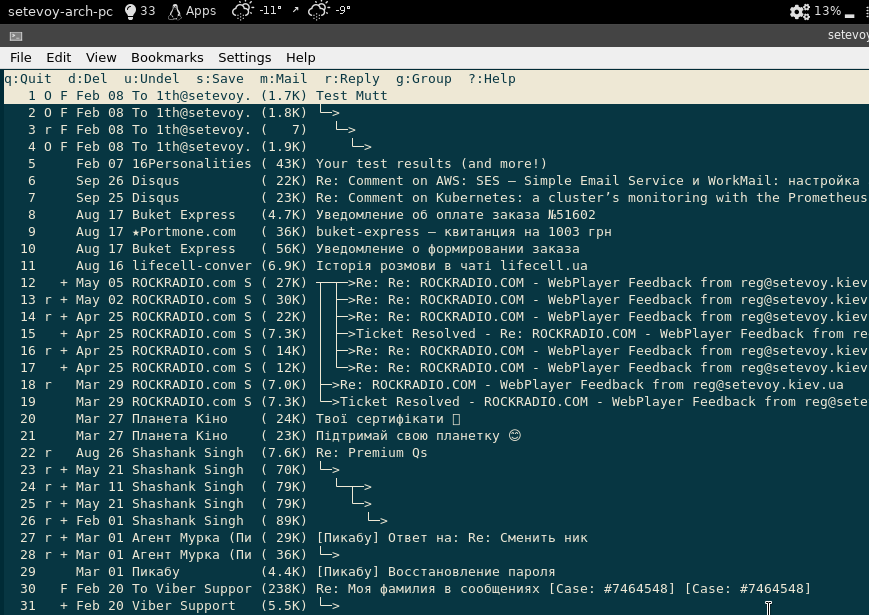
Sidebar – список каталогов
Для Mutt нужен плагин, в Neomutt есть по умолчанию.
См. опции в документации и в примере тут>>>.
Получаем следующий результат:
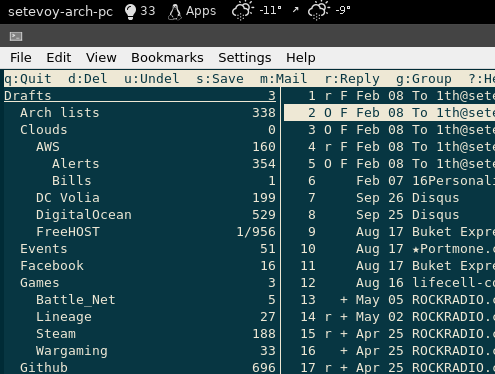
Sidebar – навигация
Добавим несколько комбинаций для навигации по списку каталогов:
Теперь по Ctrl+p переходим по списку каталогв вверх, Ctrl+n – вниз, Ctrl+o – открыть папку.
Ctrl+b – показать или скрыть сайдбар.
Sidebar – цвета
Сейчас цветовая схема выглядит достаточно скучно:
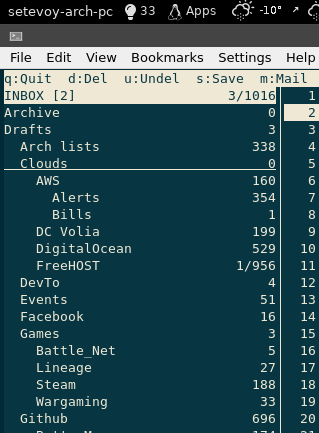
Тут первым цветом указывается FOREGROUND, т.е. цвет самого текста, вторым – BACKGROUND.
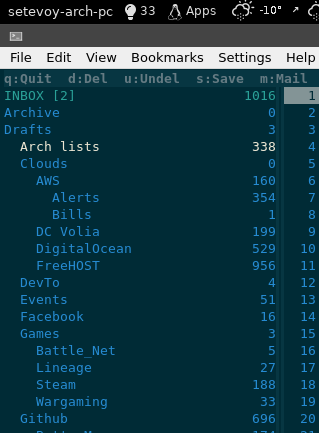
Плюс можно добавить цвета для списка писем и отображения писем.
Пароли и безопасность
И последним – про хранение паролей.
Указывать в виде текста в файле настроек не хочется, поэтмоу есть решение – использовать какой-то внешний менеджер паролей.
Аналогично для pass (см. Linux: GPG-ключи, менеджер паролей pass и импорт из KeePass) строка для получения пароля из записи 1th_freehost_password выглядела бы как:
Консольный почтовый клиент?
На своём ноутбуке я стремлюсь создать среду, в которой будет сведено к минимуму использование мыши.
Я использую awesome wm и firefox+vimperator. К сожалению, в случае с почтой я ещё не выработал приемлемого решения. Сейчас я пользуюсь или Яндекс.Почтой (веб-мордой) или Thunderbird (и даже Muttator) не спасает…
Моя сейчашняя цель: найти идеальный консольный почтовый клиент.
Я настроил offlineimap + msmtp, и теперь при наличии Maildir с моей почтой, я подыскиваю подходящий MUA.
Мои требования к почтовому клиенту выглядят так:
1) Быстрый поиск a la поиск в веб-версии (по возможности, лучше)
2) Быстрая работа с ящиком на 45k+ писем
3) Адекватная контактная книга с автодополнением хоть в каком-то виде (a la веб-интерфейс)
5) Очень желательно vim-подобный интерфейс, и обязательно vim в качестве редактора текстов
Я нарыл следующие варианты:
1) Sup. Все писают от него кипятком, но он не поддерживается с 2011 года, я не смог его нормально запустить
2) Mutt. Очень популярен, но последняя версия датируется 2010 годом. Есть версия mutt-kz с поддержкой notmuch, но в чём тогда её преимущество перед notmuch?
3) Notmuch. Пишут, что были вдохновлены Sup. Notmuch плотно интегрирован с поисковым движком и имеет массу фронтендов: notmuchmail.org/frontends/. Среди них я пока не нашёл идеального
Собственно, вопрос: можете ли вы посоветовать мне что-то конкретное (из этого списка или нет)? Может быть вы чем-то пользовались, но разочаровались? Любая информация будет полезна!
LateWeb.Info
Linux Tips, Windows Hacks, Cool Tutorials in one Blog
10 Linux Mail Clients + 7 Terminal Mail Clients [& Install]

About
In this article we are going to review 17 mail clients for Linux divided in two parts, the first part is going to be Mail Clients for the GUI and the second part is going to be Mail Clients for the terminal.
Article contents:
1 – Thunderbird GUI Mail Client
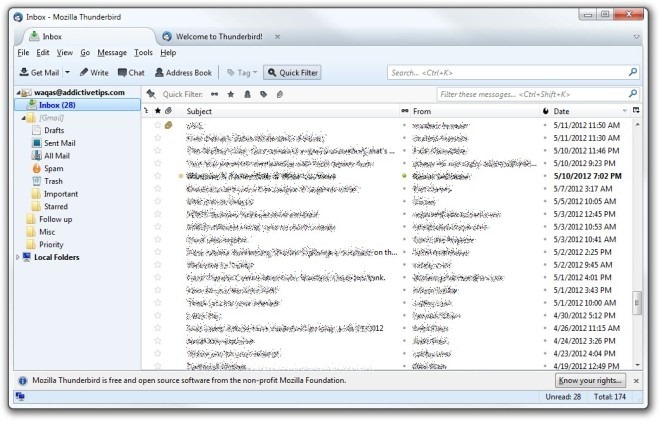
On desktop, Thunderbird remains one of the top choices for Linux users. It’s free and open-source, naturally, and was originally modeled after the Mozilla Firefox internet browser. This is most evident in Thunderbird’s tabbed email interface, which you can use to keep multiple emails open at a time for quick reference.
Key features:
2 – Evolution GUI Mail Client
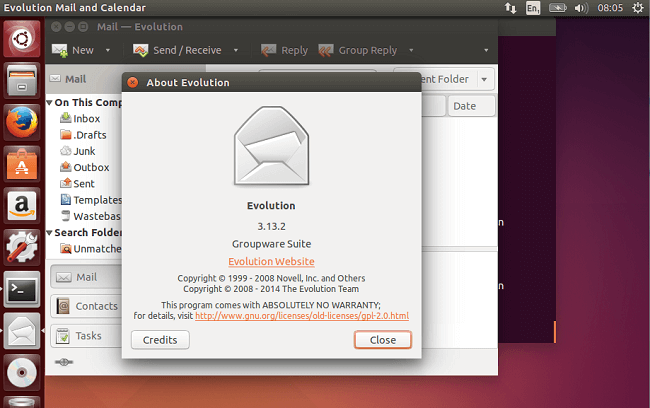
Evolution is the official personal information manager and mail client for the GNOME Desktop Environment. It is Free and Open Source Software, licensed under the GPL.
It is usually distributed with the GNOME Desktop Environment with Linux, making it likely available either upon installation of a Linux distribution that uses GNOME, such as Ubuntu, or available via your distribution’s Package Manager. Evolution is also available for Windows.
Key features:
3 – Mailspring GUI Mail Client
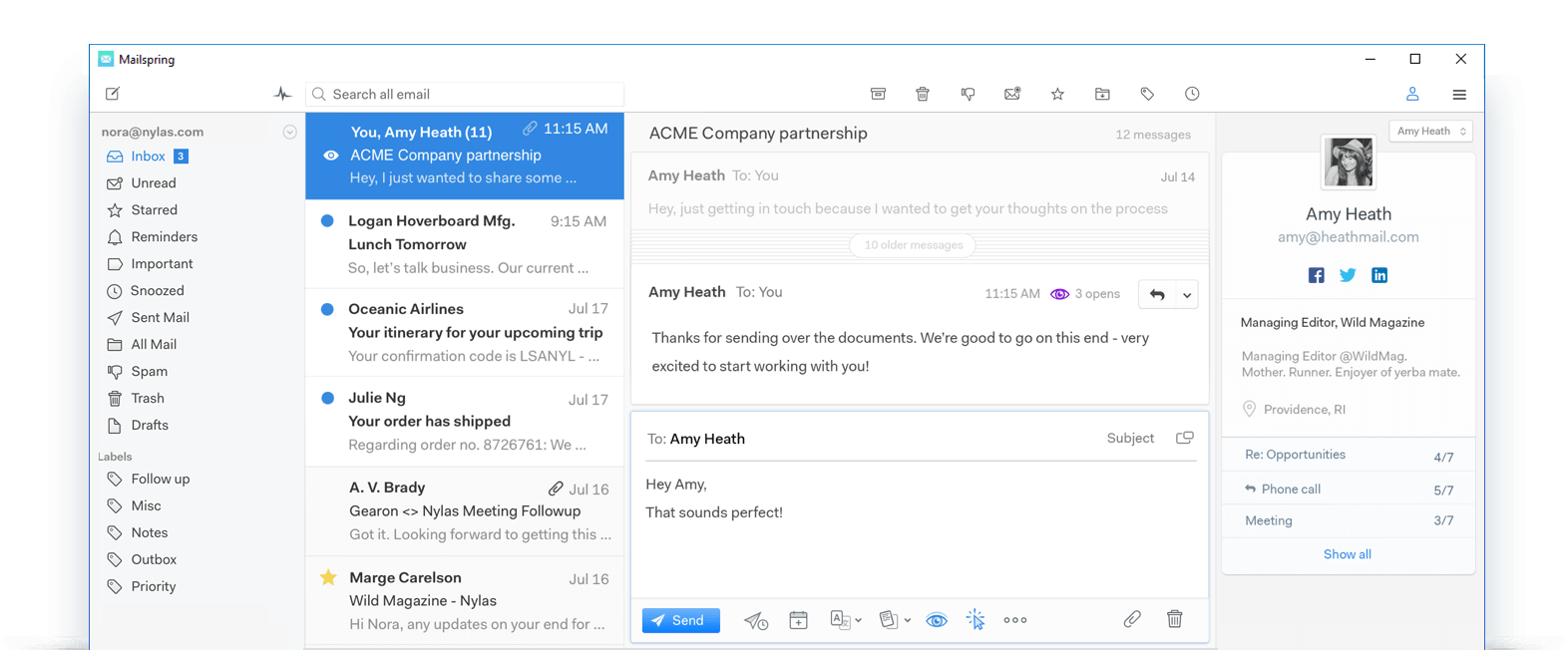
Mailspring is a desktop email client with modern features like unified inbox, snoozing, reminders, templates, offline search, and support for Gmail labels. It even has a built-in “dark” and “ubuntu” themes so you can style it to match your desktop.
Mailspring is absolutely free and supports all IMAP providers, including Gmail, Office 365 and iCloud. Mailspring does not support Microsoft Exchange ActiveSync.
Key features:
4 – Trojitá GUI Mail Client
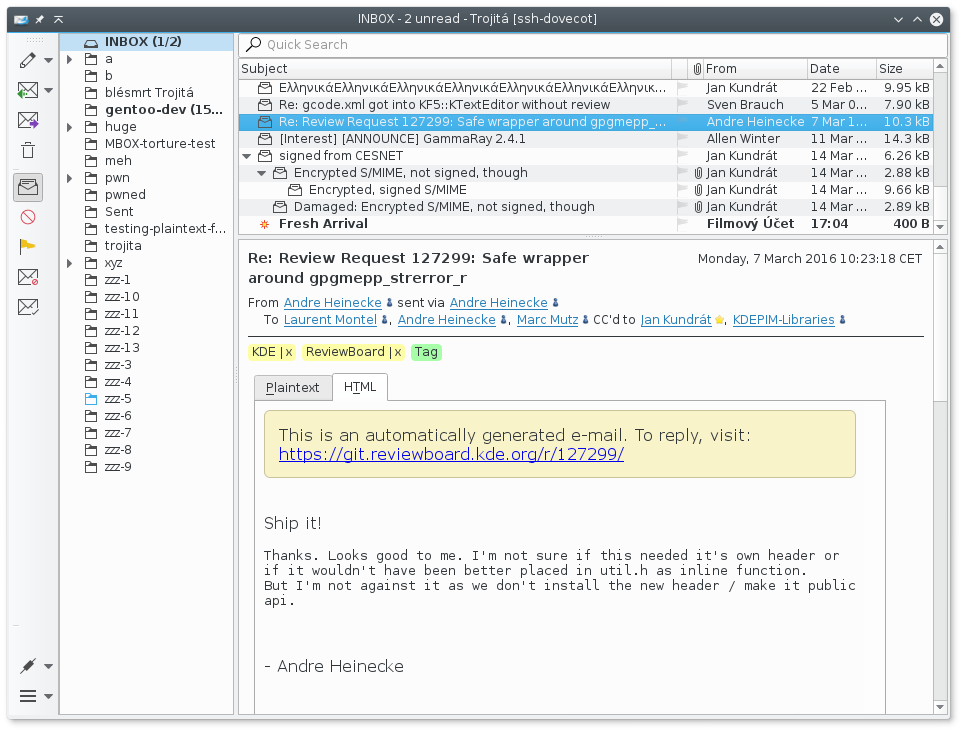
Trojitá is a free software IMAP and SMTP email client developed using the Qt C++ library. The design goals of the maintainers are to develop a fast e-mail client which respects open standards, is cross-platform and uses the available resources very efficiently.
Trojitá offers to manage contacts in the abook format, as introduced by the text-based user interface abook addressbook program. In Autumn 2012, Trojitá became a part of the KDE community.
Key features:
5 – Claws GUI Mail Client
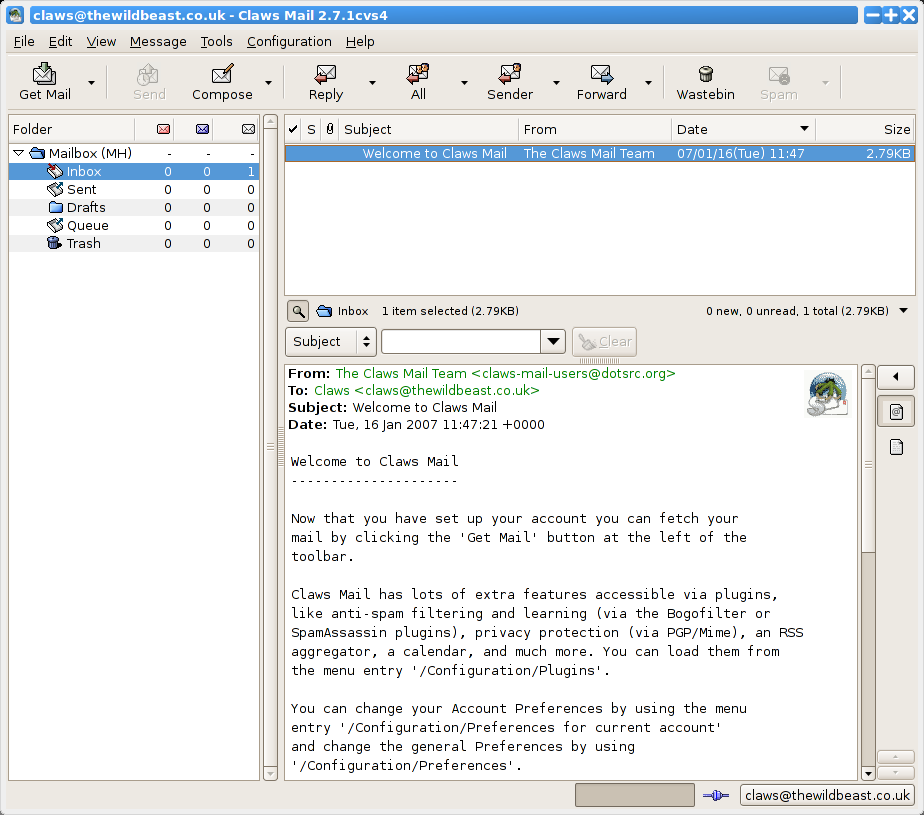
Claws Mail is a free and open-source, C/GTK-based e-mail client, which is both lightweight and highly configurable. Claws Mail runs on both Windows and Unix-like systems such as Linux, BSD, and Solaris. It stores mail in the MH mailbox format. Plugins allow to read HTML mail, but there is none to compose HTML messages. Claws Mail relies on manual setup for email accounts, offering no automatic configuration.
Key features:
6 – Sylpheed GUI Mail Client
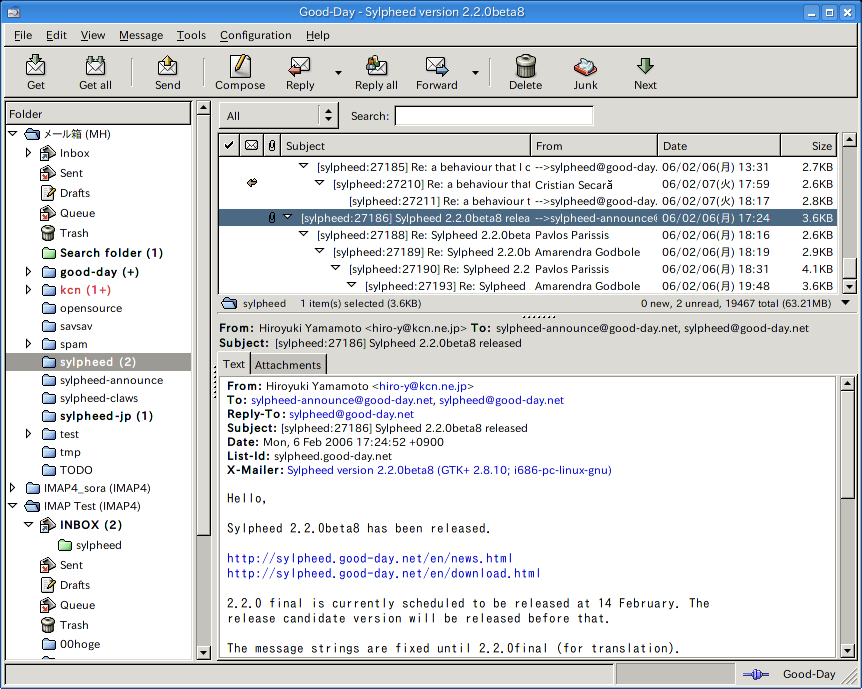
Sylpheed is a simple, lightweight but featureful, and easy-to-use e-mail client. It provides intuitive user-interface. It’s also designed for keyboard-oriented operation, so Sylpheed can be widely used from beginners to power users. Also runs on many systems such as Windows, Linux, BSD, Mac OS X and other Unix-like systems. Sylpheed is a free software distributed under the GNU GPL (the library part is GNU LGPL). You can freely use, modify and redistribute it under the license.
Key features:
7 – Geary GUI Mail Client

Geary is a free and open-source email client written in Vala and based on WebKitGTK. Although since adopted by the GNOME project, it originally was developed by the Yorba Foundation. The purpose of this e-mail client, according to Adam Dingle, Yorba founder, was to bring back users from online webmails to a faster and easier to use desktop application.
Key Features:
8 – BlueMail GUI Mail Client
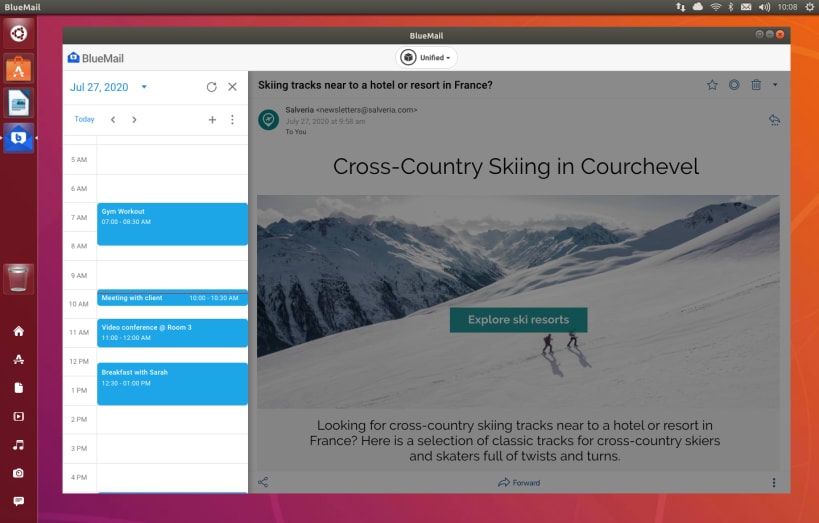
BlueMail by Blix a free, beautifully designed, universal email app, capable of managing an unlimited number of mail accounts from various providers, allowing for smart push notifications and group emailing while enabling personalization across multiple email accounts. The BlueMail app connects directly to your mail server and is the perfect replacement for your stock email app.
Key Features:
9 – KMail GUI Mail Client
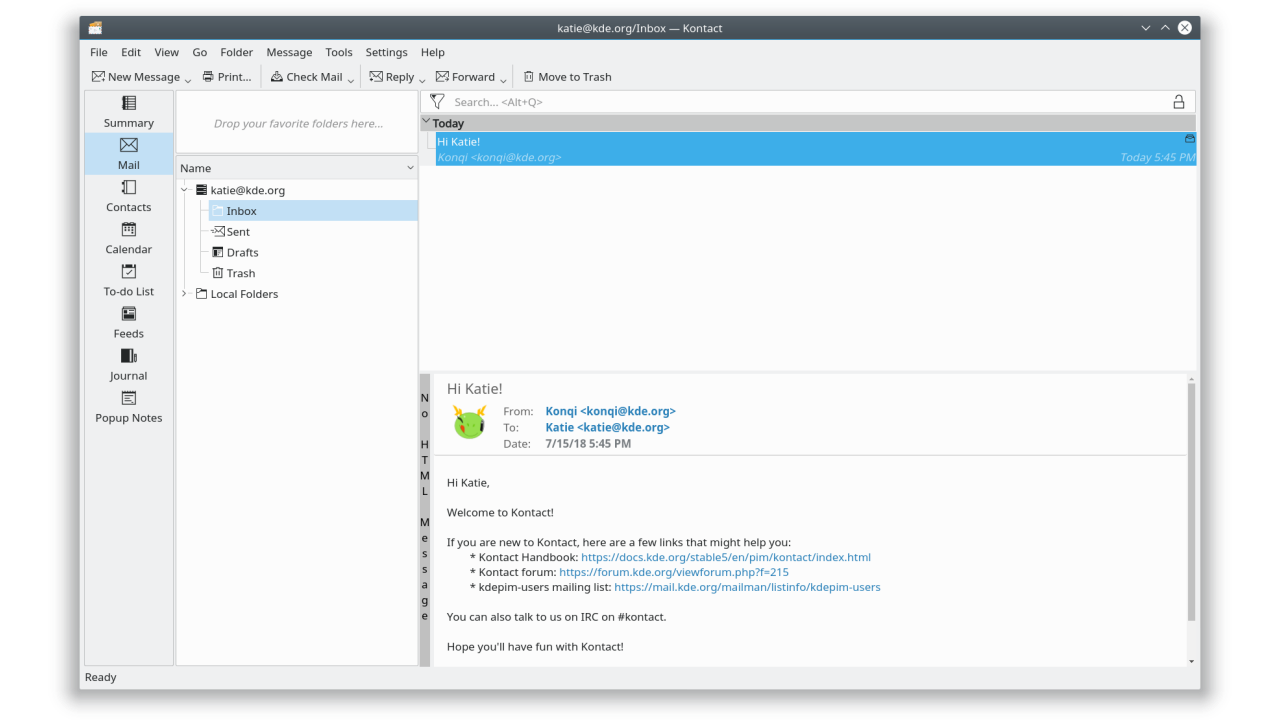
KMail is the default mail client you’ll find on most KDE-based Linux distributions. This means it has tight integration with the KDE desktop and other applications made by KDE. For example, meeting invitations you receive can be automatically detected and sent to KOrganizer calendar, and the auto-completion of email addresses is handled by KAddressBook.
Key features:
10 – SeaMonkey GUI Mail Client
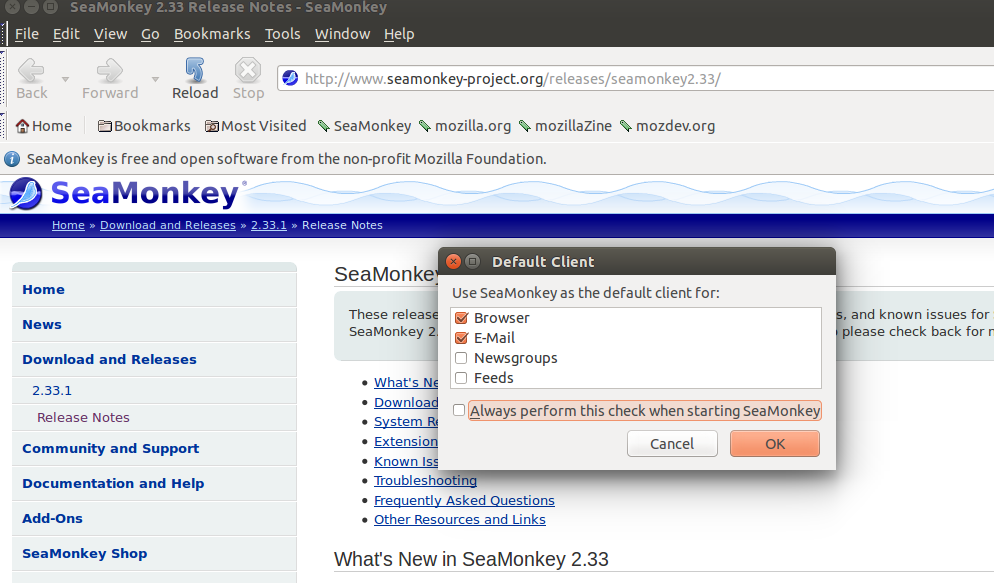
SeaMonkey is an all-in-one internet software suite developed by Mozilla. SeaMonkey is a web browser, advanced email, and newsgroup feed client. It also offers an HTML editor, IRC chat integration, web development tools, etc. SeaMonkey used Mozilla code and is considered as powerful as Firefox and Thunderbird email client.
Key Features:
1 – NeoMutt Terminal Mail Client

NeoMutt is a small but very powerful text based program for reading and sending electronic mail under Unix operating systems, including support for color terminals, MIME, OpenPGP, and a threaded sorting mode.
NeoMutt is configured through variables which, if the user wants to permanently use a non-default value, are written to configuration files. NeoMutt supports a rich config file syntax to make even complex configuration files readable and commentable.
Key Features:
2 – SUP Terminal Mail Client
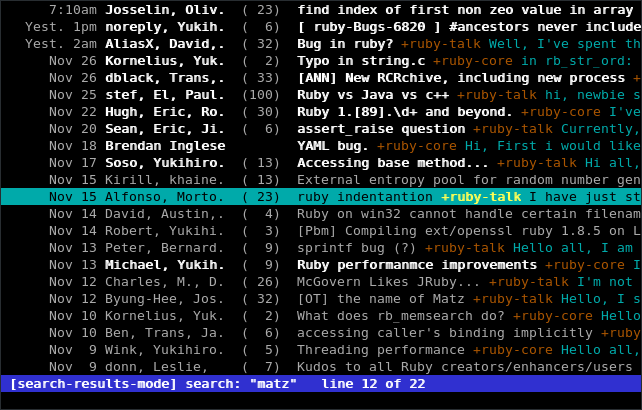
Sup is an email client written in Ruby, originally by William Morgan, but now maintained and developed by the Sup community. It presents an interface of a list of threads, which are each hierarchical collections email messages. Threads can have multiple tags applied to them. It supports a very fast full-text search, automatic contact-list management, custom code insertion via a Ruby hook system, and more.
Key Features:
3 – Mu4e Terminal Mail Client

mu4e is an emacs-based email client. It is fully search-based, with a UI optimised for speed with quick key stroked for common actions. Emails can be composed with rich-text using org-mode. Email addresses auto-completion is supported. Actions are asynchronous, so heavy actions never block emacs.
The basic idea is this: you configure an offline IMAP client to synchronise your remote email server with your local computer. Two possibilities for an IMAP synchroniser are mbsync and offlineimap. This post describes a setup using mbsync.
Key Features:
4 – Mutt Terminal Mail Client
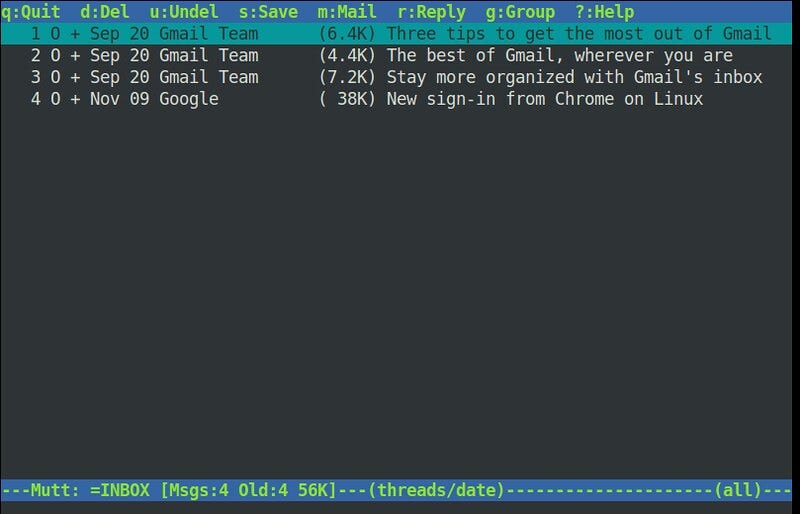
Mutt is a small but very powerful text-based mail client for Unix operating systems. The current stable public release version is 2.0.7. Though written from scratch, Mutt’s initial interface was based largely on the ELM mail client. To a large extent, Mutt is still very ELM-like in presentation of information in menus (and in fact, ELM users will find it quite painless to switch as the default key bindings are identical). As development progressed, features found in other popular clients such as PINE and MUSH have been added, the result being a hybrid, or “mutt.” At present, it most closely resembles the SLRN news client.
Key Features:
5 – Alpine Terminal Mail Client

Alpine is a free software email client developed at the University of Washington. Alpine is a rewrite of the Pine Message System that adds support for Unicode and other features. Alpine is meant to be suitable for both inexperienced email users and the most demanding of power users. Alpine can be learned by exploration and the use of context-sensitive help. The user interface can be customized.
Key Features:
6 – Wanderlust Terminal Mail Client
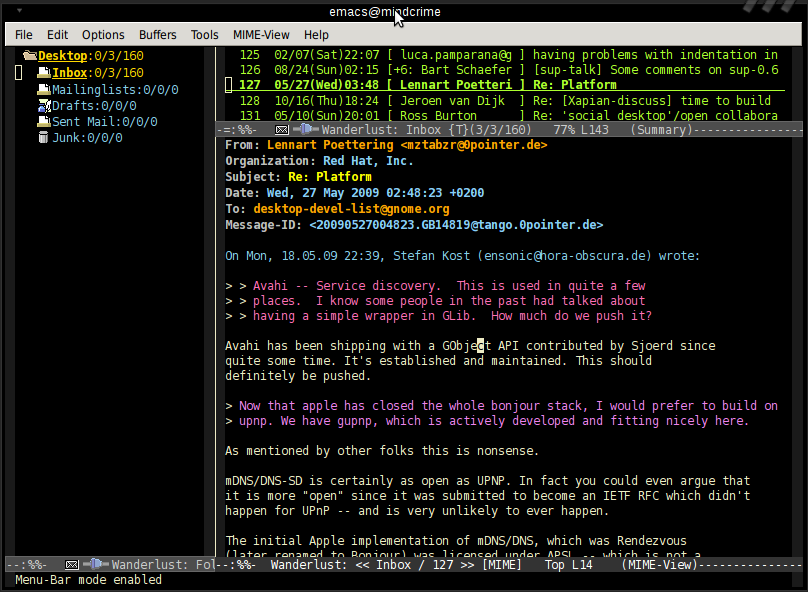
Wanderlust is a mail/news management system with IMAP4rev1 support for Emacs. It was originally developed by Yuuichi Teranishi.
Key Features:
7 – Aerc Terminal Mail Client
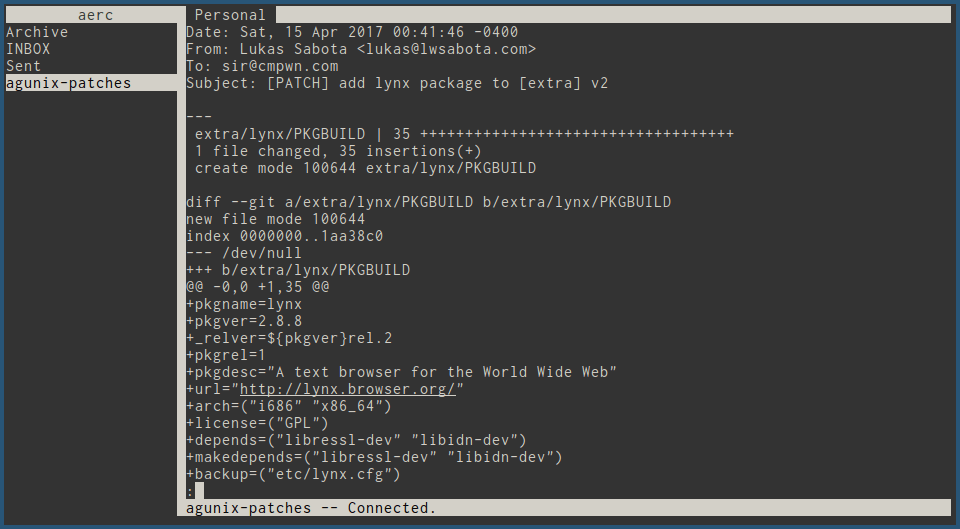
Aerc is an email client that runs in your terminal. It’s highly efficient and extensible, perfect for the discerning hacker. Check out the screencast above to get an idea of how it’s used.
Key Features:
Conclusion
In this article we showed you 17 mail clients for Linux, if you know more interesting mail clients, please comment in the comments bellow.
We hope you enjoyed this article. if that is so please rate this page with the stars bellow and subscribe to our YouTube channel or follow us on twiter.
Linux Blog


Console based E-Mail Clients
Pine is a program for Internet News & Email: a tool for reading, sending, and managing electronic messages. Pine was developed by UW Technology at the University of Washington. Though originally designed for inexperienced email users, Pine has evolved to support many advanced features, with an ever-growing number of configuration and personal-preference options.

Pine uses Internet message protocols (e.g. RFC-822, SMTP, MIME, IMAP, NNTP).
Pine’s message composition editor, Pico, is also available as a separate standalone program. Pico is a very simple and easy-to-use text editor offering paragraph justification, cut/paste, and a spelling checker.
Features include:
* Online help specific to each screen and context
* Message index showing a message summary which includes the status, sender, size, date and subject of messages
* Commands to view and process messages: Forward, Reply, Save, Export, Print, Delete, capture address, and search
* Message composer with easy-to-use editor and spelling checker. The message composer also assists entering and formatting addresses and provides direct access to the address book
* Address book for saving long complex addresses and personal distribution lists under a nickname
* Message attachments via the Multipurpose Internet Mail Extensions (MIME) specification. MIME allows sending/receiving non-text objects, such as binary files, spreadsheets, graphics, and sound
* Folder management commands for creating, deleting, listing, or renaming message folders. Folders may be local or on remote hosts
* Access to remote message folders and archives via the Internet Message Access Protocol (IMAP)
* Internet news support via either NNTP or IMAP
* Aggregate operations, e.g. saving a selected set of messages at once.
Mutt is a small but very powerful text based program for reading electronic mail under unix operating systems, including support color terminals, MIME, and a threaded sorting mode.
Mutt supports most mail formats (notably both mbox and Maildir) and protocols (POP3, IMAP, etc). It also includes MIME support, notably full PGP/GPG and S/MIME integration.
Cone stands for «console newsreader and emailer. Cone is a text-based mail client, which seamlessly handles multiple POP3, IMAP accounts, and local mail folders.
Cone is also a simple newsreader. Cone’s interface is foolproof enough to be used by inexperienced users, but it also offers advanced features for power users.
Cone handles multiple mail accounts simultaneously.
Features include:
* Can use the following kinds of mail accounts
o Local mail folders, or maildirs
o Remote POP3 and IMAP mail server accounts
* Experimental SMAP mail server accounts
* Full SSL/TLS support with IMAP, POP3, NNTP, SMTP, and SMAP. SASL CRAM-MD5/CRAM-SHA1 authentication (except for NNTP)
* Built-in editor for creating messages
* Displays HTML mail, with automatic de-moronization
* Full UTF-8 support
* Displays attached images, if invoked from an X terminal, by running Gnome’s eog, or KDE’s kview image viewer
* Spell checker
* Local and remote (IMAP or SMAP-based) addressbooks
* Remote configuration (share a common configuration between different instances of Cone)
* Supports access to servers through a Socks 5 proxy, using the Courier Socks 5 API toolkit
* Sends mail using an external SMTP server (with/without authentication), or the local sendmail
* PGP/GPG based encryption, and digital signatures
* Simple newsgroup reader
Alpine (Alternatively Licensed Program for Internet News and Email) is a fast, easy to use console based email client, developed at the University of Washington. It is suitable for both the inexperienced email user as well as for the most demanding power user.
Alpine is a screen-oriented message-handling tool. In its default configuration, Alpine offers an intentionally limited set of functions geared toward the novice user, but it also has a large list of optional «power-user» and personal-preference features.